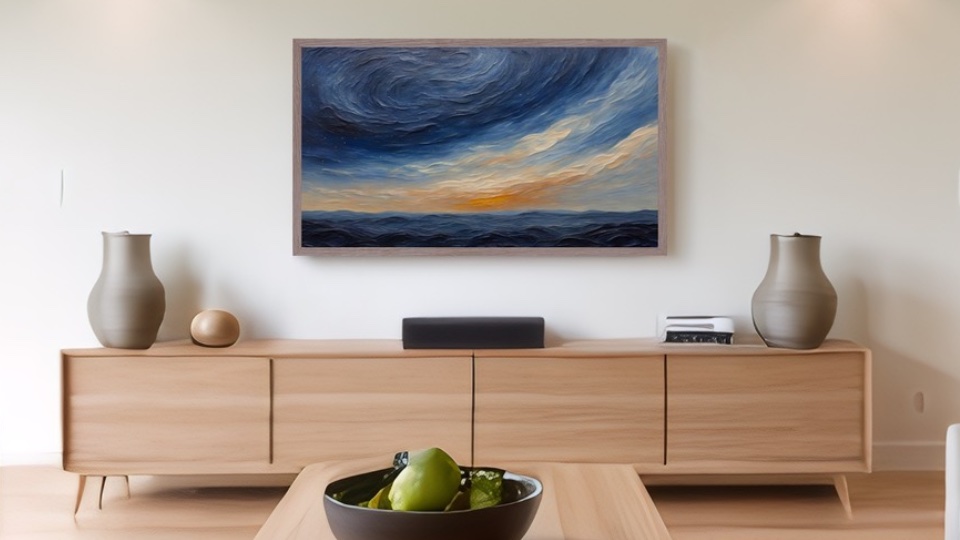
What You Need
- Samsung Frame TV (any model year)
- A USB drive (formatted FAT32) or the SmartThings app on your phone
- Digital art files (JPEG format, 3840×2160 resolution for 4K display)
Method 1: Using a USB Drive
The USB method is the most reliable way to add your own art, especially for larger collections. Here's how to do it:
- Download your art files to your computer. Make sure they're in JPEG format and sized to 3840×2160 pixels for the best quality.
- Copy the files to a USB drive. The drive should be formatted as FAT32 (most USB drives already are). Simply drag and drop your art files to the root of the drive.
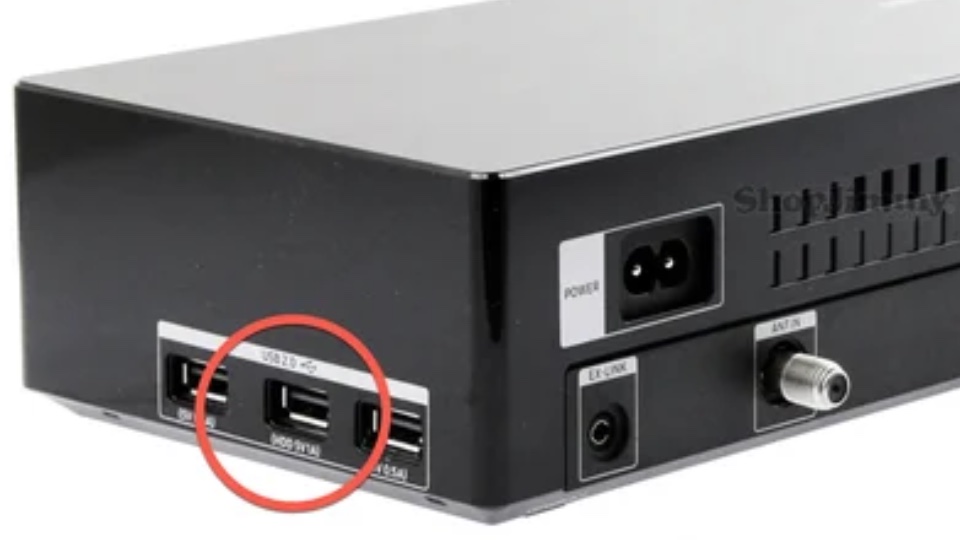
- Insert the USB into your TV's USB port. You'll find the port on the back of the TV or on the One Connect Box if your model has one.
- Navigate to Art Mode. Press the Art Mode button on your remote, or go to Menu → Art Mode → My Photos → USB.
- Select the images you want to display. You can choose individual pieces or select multiple images to create a rotating playlist.
- Adjust the matte and frame color in Art Mode settings to match your wall and decor. This makes the TV blend seamlessly into your space.
Method 2: Using the SmartThings App
If you prefer a wireless approach, the SmartThings app lets you upload art directly from your phone.
- Open the SmartThings app on your phone and make sure your TV is connected. If it's not already set up, follow the app's instructions to add your TV.
- Tap your Frame TV in the device list, then select Art Mode.
- Select "Add Your Photos" to upload images from your phone's gallery.
- Choose the art you want to display. You can select multiple images at once.
- Arrange them in a playlist or set them to shuffle. You can also schedule specific art to display at different times of day.
Tips for the Best Display
- Resolution matters: Use 3840×2160 resolution (16:9 aspect ratio) for the sharpest, clearest image. Lower resolution art will look soft or pixelated.
- Match your matte: Set the matte color to match your wall for a seamless, gallery-like look. White, beige, and warm gray work beautifully with most art.
- Enable the motion sensor: The TV will sleep when no one is in the room, saving energy while keeping the art-forward experience when you're home.
- Low power consumption: Art Mode uses very little power — roughly the same as a nightlight. You can leave it on all day without worry.
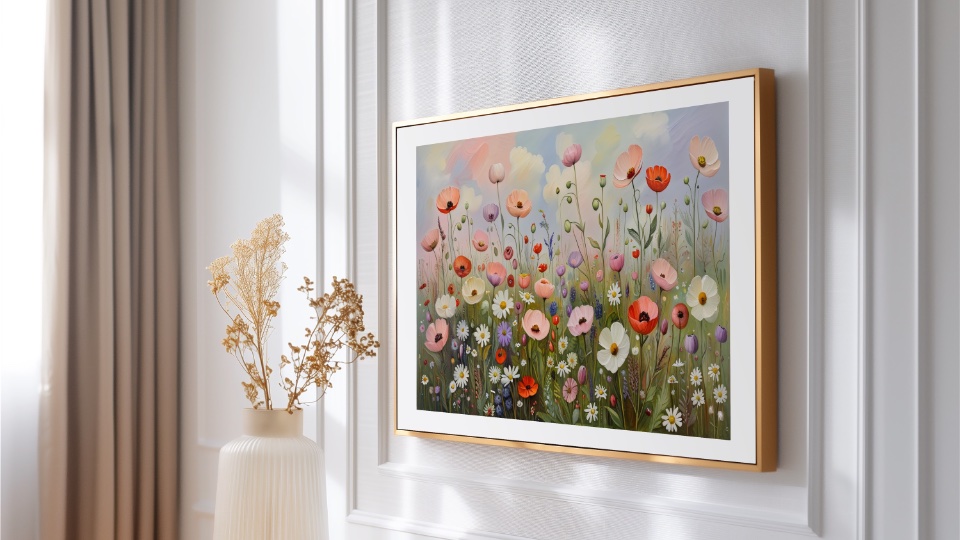
Ready to Display Beautiful Art?
Looking for art that's made specifically for Samsung Frame TV? Browse our curated collections of painterly still life and Mediterranean landscapes — all perfectly sized at 3840×2160 and ready to display. Visit our Etsy shop →